
Enhanced RDP Security: Understanding Microsoft's New Phishing Protection Mechanism

Microsoft has introduced a robust two-tier security system to protect users from malicious Remote Desktop Protocol (RDP) files. This enhanced phishing protection mechanism adds crucial verification layers that help organizations maintain secure remote access while protecting against sophisticated social engineering attacks.
The Two-Part Security Framework
Part 1: Digital Signature Verification
The first line of defense involves digitally signed RDP files. When an RDP file is properly signed with a valid certificate, users can verify that the file hasn't been tampered with and originates from a legitimate source. This cryptographic signature ensures file integrity and authenticity, providing users with confidence that the connection parameters haven't been maliciously modified.
Part 2: SHA1 Fingerprint Trust Management
The second component focuses on establishing trusted publishers through SHA1 certificate fingerprints. This mechanism allows administrators to pre-approve specific certificate authorities or individual certificates, creating a whitelist of trusted RDP file publishers within the organization.
User Experience and System Behavior
First-Time Connection Prompt
When users attempt to open an RDP file from an external or previously unknown system, Windows displays a security warning dialog. This initial prompt serves as a crucial decision point where users can choose to trust the publisher or abort the connection.
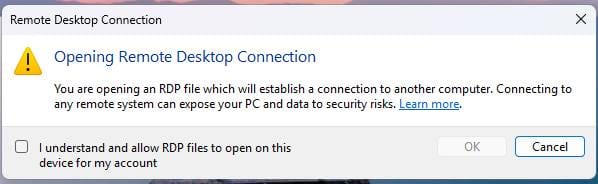
Upon user confirmation of this security dialog, the system automatically creates a registry entry to remember this decision:
Key: RdpLaunchConsentAccepted
Value Type: REG_DWORD
Value: 1
Warning Scenarios
The system presents different warning dialogs based on the security status of the RDP file:
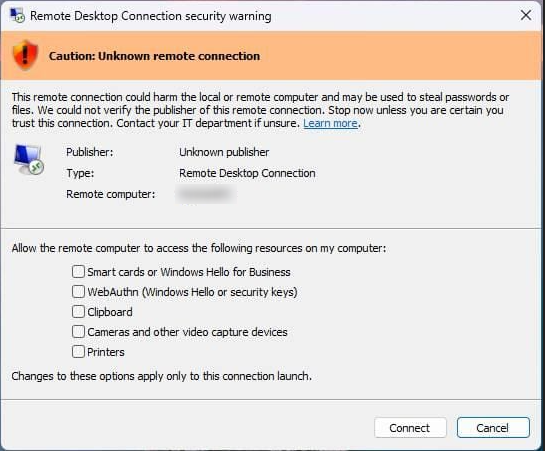
Unsigned or Invalid Signature Warning
When an RDP file lacks a digital signature or contains an invalid signature, Windows displays a prominent security warning. This alert indicates potential security risks and advises caution before proceeding with the connection.
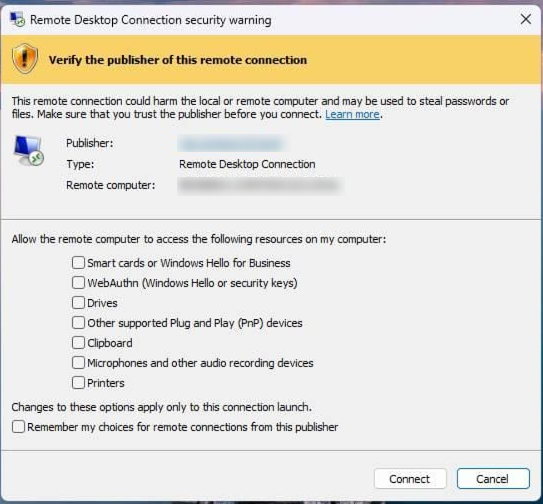
Untrusted SHA1 Fingerprint Warning
If the RDP file is signed but the certificate's SHA1 fingerprint isn't recognized as trusted, users receive a specific warning about the unknown publisher. This scenario occurs when the certificate is valid but hasn't been explicitly approved by the organization's security policies.
Administrative Configuration Options
Group Policy Management
Administrators can centrally manage trusted certificates through Group Policy:
Computer Configuration > Administrative Templates > Windows Components > Remote Desktop Services > Remote Desktop Connection Client > "Specify SHA1 thumbprints of certificates that represent trusted RDP publishers"
This policy setting allows IT administrators to define a comprehensive list of approved certificate fingerprints across the entire organization.
Registry-Based Configuration
For more granular control or scripted deployments, administrators can directly configure the registry:
Key: TrustedCertThumbprints
Value Type: REG_SZ
Content: Certificate thumbprint (SHA1 fingerprint)
Multiple trusted thumbprints can be added as separate registry values under this key.
Disabling the Protection Mechanism
While not recommended for security reasons, organizations may need to disable this protection temporarily during migration periods or for compatibility with legacy systems.
Key: RedirectionWarningDialogVersion
Value Type: REG_DWORD
Value: 1
Microsoft has explicitly stated that they reserve the right to remove, disable, or modify this bypass mechanism in future Windows updates. Organizations relying on this workaround should plan for alternative solutions and avoid making it a permanent configuration.
Best Practices and Recommendations
For IT Administrators
- Implement certificate-based trust: Deploy organizational certificates and configure Group Policy to trust internal certificate authorities
- Regular audits: Periodically review trusted certificate lists and remove expired or compromised entries
- User education: Train end users to recognize legitimate security warnings and proper response procedures
- Phased deployment: Test the new security features in controlled environments before organization-wide implementation
For End Users
- Exercise caution: Always verify the source of RDP files before accepting trust relationships
- Report suspicious activity: Contact IT security teams when encountering unexpected certificate warnings
- Follow organizational policies: Adhere to company guidelines regarding external RDP connections
Conclusion
Microsoft's enhanced RDP phishing protection represents a significant step forward in securing remote desktop connections. By combining digital signature verification with granular trust management, organizations can maintain the convenience of RDP access while substantially reducing the risk of credential theft and unauthorized system access.
The two-tier approach provides both immediate protection for end users and comprehensive administrative control for IT teams. While the transition may require some initial configuration and user education, the long-term security benefits far outweigh the implementation effort.
Organizations should prioritize implementing this security framework as part of their broader cybersecurity strategy, ensuring that remote access remains both functional and secure in an increasingly distributed work environment.